Finding images stolen from your website and republished on the internet mainly involves using search engines or a few specialized tools.
When it comes to images reused without your knowledge on social media, the investigation is more uncertain because posts on these “closed” networks alter the images and often prevent them from being properly indexed.
They contain less contextual information, are systematically renamed, and their metadata, such as copyright information, is removed.
As a result, they are less visible and less relevant to search engines, which still favor the open web.
This second part of our series on image theft on the internet is brought to you by web design studio A Kom Z, based in Lyon, France.
Before reading this tutorial, we recommend that you read the first part, “How to protect your images from theft on the internet.”
How to find your stolen images using a search engine
Image search is not an exact science, so don’t hesitate to try several of the methods presented below.
Search for similarities based on an image in your possession.
This is a fairly effective technique for finding clones of your photographs on the internet, including those that have been copied from a simple screenshot!
The two “real” search engines, Google and Bing, offer a feature that allows you to submit a photograph from your computer or mobile device to search for similar images.
On Google image :
- Click on the camera icon in the search bar.
- Select the option “Drag an image here or import a file.”
- Select an image from your computer or smartphone.
- Google will then display an initial results screen listing all similar or identical images, as in the following example.
The image submitted below (at the top of the screenshot) enabled Google to find identical or very similar images.
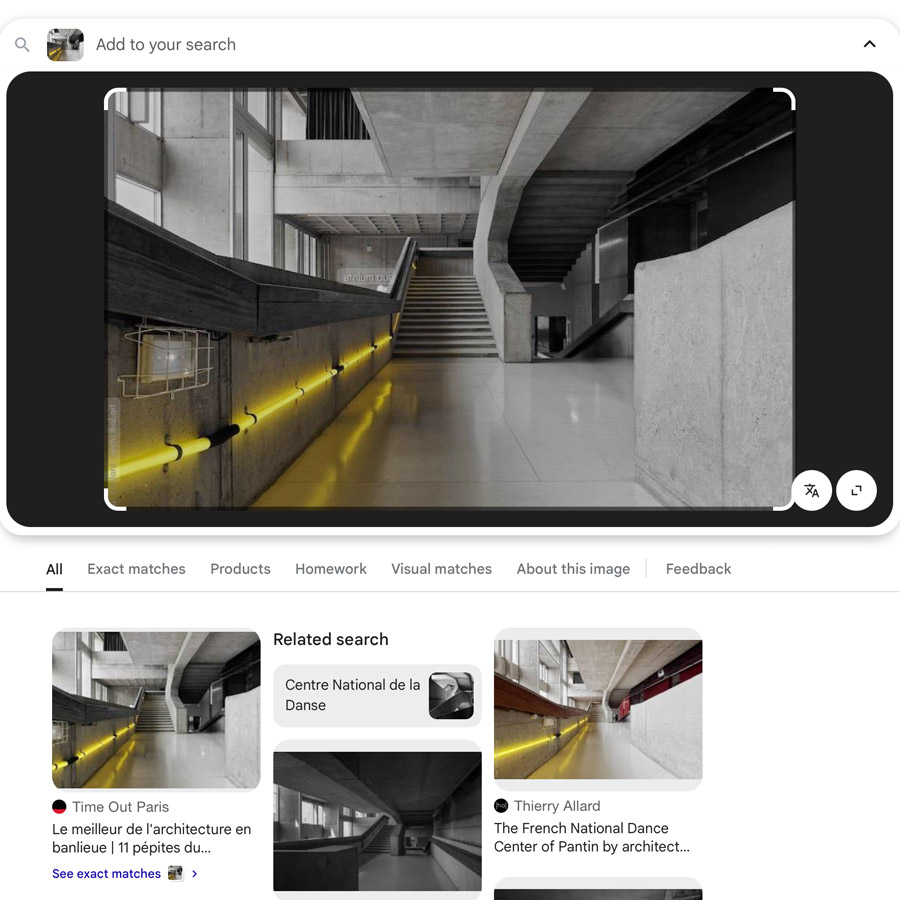
The result on the left shows the first illegal use of the image, with the name of the website caught red-handed (a second fraudulent use can also be found further down).
The result in the middle is a similar but not identical image, and the result on the right is the original image found on the photographer’s website.
It turns out that the two websites that reproduced this image without authorization did so while attempting to hide the watermark: the first blurred it to make it unreadable, while the second cropped the image to make it disappear!
Note: after contacting the authors of the offending articles, they removed the images from their respective websites, with varying degrees of speed, without offering compensation or purchasing the image.
This example shows that you should not just rely on the “Exact matches” tab.
It is important to also check the results in the default “All” tab or in “Visual matches” as they offer the possibility of finding images that may have been slightly modified.
Find websites that display your images from your site
Sometimes, your images are used elsewhere without your knowledge, and downloaded directly from your website.
In this case, not only is a third party using your images, but you are also “paying” for them to be displayed, since they come from your hosting service!
Detecting hotlinking on images on your website
This search technique is related to tip #8 in the first part of this guide: “Prevent direct access to your images via external sites.”
How to perform a global search on images on your website
Use the following query in Google Images, replacing the URL with that of your site:
inurl:www.name-of-my-website.com -site:www.name-of-my-website.com
This query means that you are searching for all websites that link to resources, including images, hosted on your site (excluding it).
Example of the query result for our blog:
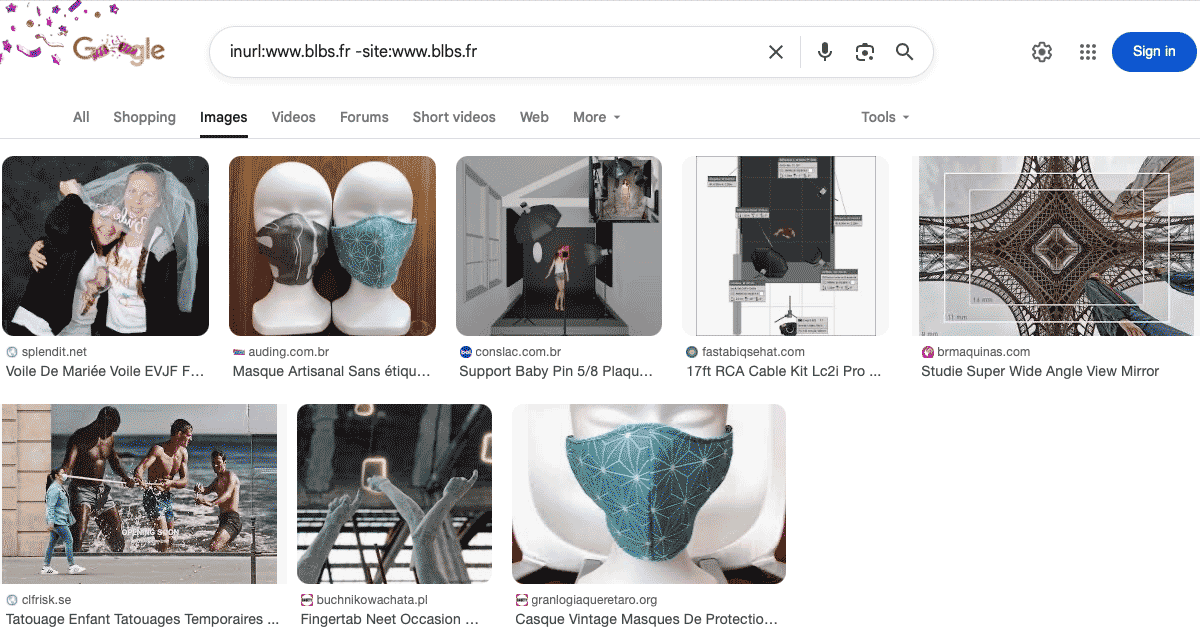
At the time of writing this tutorial, Google found 8 images from our blog blbs.fr that were directly displayed on sites that were likely “toxic*.”
First step: click on each image to check if it still appears on the referenced page.
The good news is that, in general, most of these sites do not have a very long lifespan.
Second step: try to contact the site displaying the problematic page…
But in the case of hotlinking, we are often dealing with automated sites whose anonymous authors are unreachable or couldn’t care less about responding to any requests.
Third step: trace the source by doing a WHOIS search on the domain name.
This will allow you to find information about the site owner or host, and provide a more direct way to contact them.
Fourth step: for the most serious cases, such as the duplication of a site or entire pages that infringe on your copyright, seek legal assistance!
If your website is often affected by this practice, refer to the techniques mentioned in our first section, which discusses methods for blocking hotlinking.
*Please note: some of these results may also come from a more “acceptable” image sharing technique used in forum discussions.
Unfortunately, these initial leads are not exhaustive and may even vary from day to day, but they are very useful for knowing which images to start your investigation with.
How to refine your search for a specific image on your site
- In Google Images or Bing Images, click on the camera or lens icon in the search bar.
- Select the “Paste image link” option.
- Paste the direct URL of an image hosted on your site (right-click on the image and select “Copy image address”).
- Click on “Search by image.”
Note: this technique of copying the URL may generate results that are slightly different from those obtained by direct selection or dragging the image, as explained at the beginning of this article.
Example query for the first photograph found in the previous step, which is published in an article on our blog about a bachelorette party.
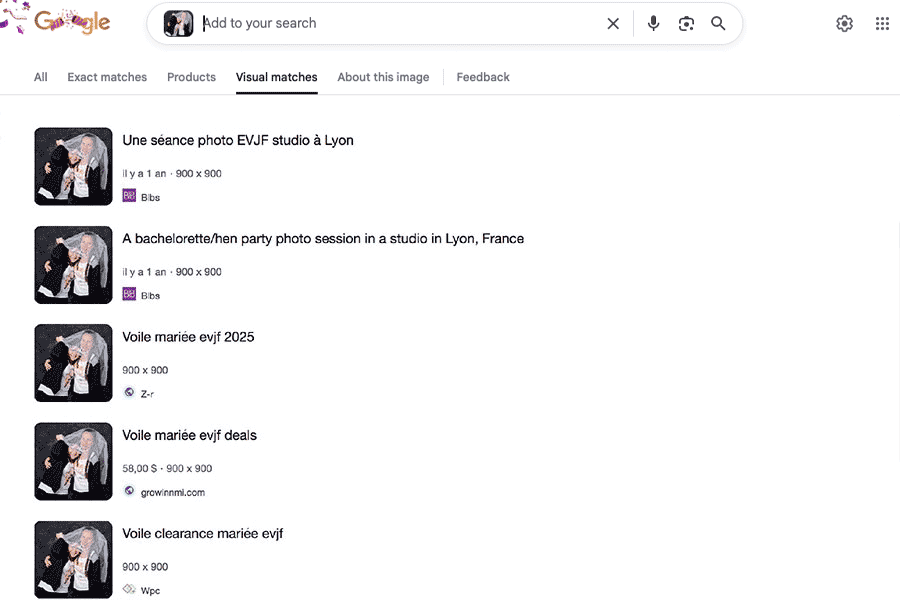
After pasting the URL of our pirated image, we find two versions of images on our site in the “Visual matches” tab, followed by copies that appear on three sites belonging to the thieves.
They are selling this image (you can even see the price displayed by Google) or using it as an illustration to sell wedding veils!
With this type of query, the search engine gives you several results:
- Websites that use your exact image (including those that hotlink).
- Similar images and the different sizes available on the web.
Search using the copyright metadata of your image
This process can be used to recover stolen images containing your copyright metadata, but also in cases where your name appears in the captions of images published on blogs or news sites.
On Google Images, preferably (with Bing Images, the results are incomplete), you can search directly from the exact copyright notice with the following query (be sure to keep the quotation marks):
copyright “your exact copyright”
To display only images published outside your site:
copyright “votre copyright exact” -site:www.name-of-my-website.com
Search the internet using an image name
Sometimes “borrowers” don’t bother to rename an image stolen from your site or directly from search engine results.
If you have taken care to give it a unique name (rather than a number), you can try to find copies using one of the following queries:
Example for an image with a jpg extension (keep the quotation marks):
“name-of-my-image.jpg”
Alternative method with separate image extension:
“name-of-my-image” filetype:jpg
Multiple search method (in case the thief has changed the image file format)
“name-of-my-image” filetype:jpg OR filetype:png OR filetype:webp OR filetype:gif
Please note: these queries may yield different results depending on the search engine.
Searching for pirated images using other online tools
Several specialized websites offer to help you search for copies of your images used on the internet.
These tools are usually paid services, but they offer a few hundred free searches when you sign up.
Tinyeye is one of the oldest search tools for similar images to have been developed. It offers free searches in its own database based on an uploaded image or URL, as well as tools that enable automated monitoring.
Copytrack offers up to 500 free image searches in its database and automated paid services.
Pixsy also offers up to 500 free searches before suggesting a paid offer.
Photographer’s testimony: “My stolen images found on social media”
While browsing Twitter (now X) or Instagram, I have come across images stolen from my website or publications, which were reposted without citing the source.
I must say that it is particularly annoying to come across an influencer account followed by thousands of people who use one of my photographs for their own benefit, without any authorization, or even a link or a citation.
In this case, I contact them directly to lecture them and ask them to remove their post. Unfortunately, it often turns out that my private messages go unanswered.
In the end, the only technique that really works is to call out the influencer directly in posts on their public feed, because they don’t like their reputation being tarnished in front of their followers for very long!
Once, this even led to an immediate ban from them, and I had to create a new account to make sure the post had been removed!
Quant à signaler ces violations de copyright directement auprès de X ou d’Instagram, ils ne font pas vraiment cas de ces problèmes en ne répondant en généralement pas, ou alors ils compliquent à l’extrême la moindre demande.
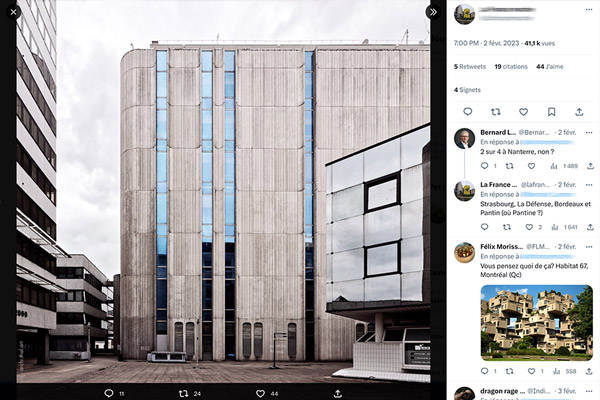
Over 40,000 views for this image stolen from a website and republished without permission in a Twitter thread (X) that disparages brutalist architecture.
Best practices for using images that do not belong to you
On the internet
If you wish to reuse an image that you did not create on your website, you must ensure that it is copyright-free and check whether there are any copyright notices that can help you find the author (or a rights holder) to request permission.
- You can use a utility or photo editing application capable of reading metadata for an image saved from the internet.
- You can search by image, using one of the techniques described in this tutorial, to find other information, such as the author’s website where it is published.
In the case of non-commercial use, some photographers grant free permission when asked, in exchange for a link and a credit near the image.
On social media
The default rule on social media is to allow users to repost other people’s content, automatically including a quote and a link to the original post’s profile.
It is therefore best to use this feature and never directly copy an image posted on another profile to repost it on your own account.
If you want to post an image from a third party found elsewhere on the internet on your feed, refer to the content of the previous paragraph “On the internet.”
©The studios blog : external links to this article are authorised and appreciated, but any use of textual content or images from this site is subject to authorization.